> ## Documentation Index
> Fetch the complete documentation index at: https://docs.data-wizard.ai/llms.txt
> Use this file to discover all available pages before exploring further.
# HTTP & GraphQL API
> Integrate Data Wizard programmatically using the HTTP REST API and GraphQL API endpoints.
For more advanced integration scenarios or applications requiring deeper control over the data extraction process, Data Wizard provides both **HTTP REST API** and **GraphQL API** endpoints. These APIs allow you to interact with Data Wizard programmatically, without relying on the embedded iFrame UI.
## Authentication
To authenticate, provide a valid Bearer token in the `Authorization` header of your requests. You can generate API tokens in the Data Wizard backend under "Settings" > "Personal Access Tokens".
Log in to your Data Wizard backend and navigate to the "Personal API Tokens" page under "Settings". Generate a new API token and save it securely.
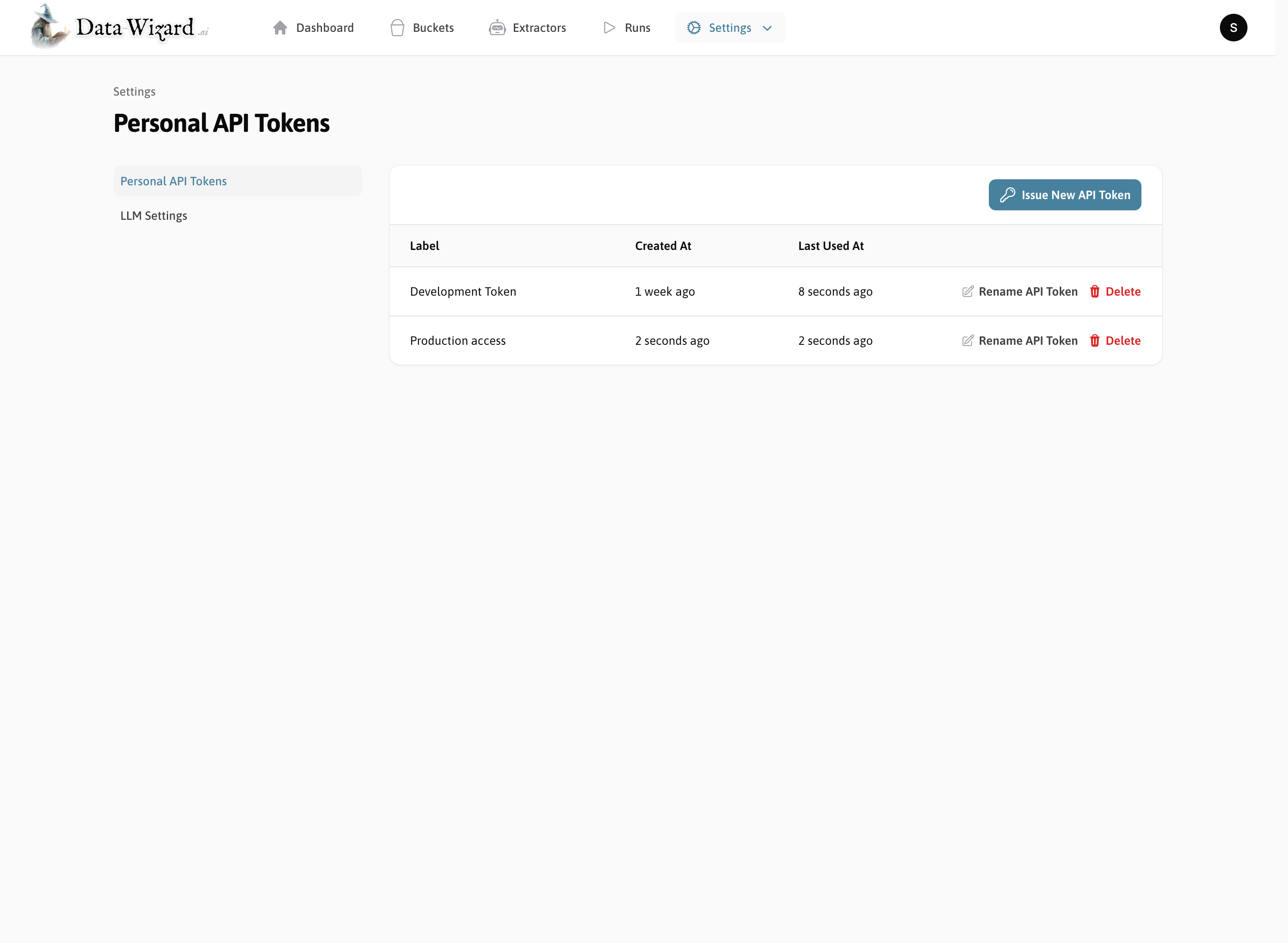 When making API requests, include your API token in the `Authorization` header as a Bearer token:
```
Authorization: Bearer YOUR_API_TOKEN
```
Use the [interactive API documentation](./api-reference) to explore available endpoints and test requests directly in your browser.
Explore the API endpoints and test requests directly in the interactive API documentation.
Read the full HTTP API reference for Data Wizard, including available endpoints and request/response schemas.
When making API requests, include your API token in the `Authorization` header as a Bearer token:
```
Authorization: Bearer YOUR_API_TOKEN
```
Use the [interactive API documentation](./api-reference) to explore available endpoints and test requests directly in your browser.
Explore the API endpoints and test requests directly in the interactive API documentation.
Read the full HTTP API reference for Data Wizard, including available endpoints and request/response schemas.
**Buckets:**
* `POST /api/buckets`: Create a new Extraction Bucket.
* `GET /api/buckets`: List all Extraction Buckets.
* `GET /api/buckets/{id}`: Retrieve a specific Extraction Bucket.
* `DELETE /api/buckets/{id}`: Delete an Extraction Bucket.
**Extractors:**
* `POST /api/saved_extractors`: Create a new Extractor (SavedExtractor).
* `GET /api/saved_extractors`: List all Extractors.
* `GET /api/saved_extractors/{id}`: Retrieve a specific Extractor.
* `PUT /api/saved_extractors/{id}`: Update an Extractor.
* `DELETE /api/saved_extractors/{id}`: Delete an Extractor.
**Extraction Runs:**
* `POST /api/extraction_runs`: Start a new Extraction Run.
* `GET /api/extraction_runs`: List all Extraction Runs.
* `GET /api/extraction_runs/{id}`: Retrieve a specific Extraction Run.
* `GET /api/extraction_runs/{id}/results`: Retrieve results of an Extraction Run.
## Endpoints
### REST API
The primary way to interact with Data Wizard programmatically is through the REST API. The REST API provides endpoints for managing Extraction Buckets, Extractors, and Extraction Runs.
**Buckets:**
* `POST /api/buckets`: Create a new Extraction Bucket.
* `GET /api/buckets`: List all Extraction Buckets.
* `GET /api/buckets/{id}`: Retrieve a specific Extraction Bucket.
* `DELETE /api/buckets/{id}`: Delete an Extraction Bucket.
**Extractors:**
* `POST /api/saved_extractors`: Create a new Extractor (SavedExtractor).
* `GET /api/saved_extractors`: List all Extractors.
* `GET /api/saved_extractors/{id}`: Retrieve a specific Extractor.
* `PUT /api/saved_extractors/{id}`: Update an Extractor.
* `DELETE /api/saved_extractors/{id}`: Delete an Extractor.
**Extraction Runs:**
* `POST /api/extraction_runs`: Start a new Extraction Run.
* `GET /api/extraction_runs`: List all Extraction Runs.
* `GET /api/extraction_runs/{id}`: Retrieve a specific Extraction Run.
* `GET /api/extraction_runs/{id}/results`: Retrieve results of an Extraction Run.
Explore the API endpoints and test requests directly in the interactive API documentation.
### GraphQL API
Data Wizard also exposes a GraphQL endpoint for more flexible data querying. This is automatically generated using [API Platform](https://api-platform.com/), which provides a powerful and extensible GraphQL API based on the REST API.
This API is provided as a helpful alternative to the REST API, but is not actively maintained beyond the switch being enabled in [API Platform](https://api-platform.com/).
* **GraphQL Endpoint URL:** `https://YOUR_DATA_WIZARD_URL/api/graphql`
* **GraphQL Queries:** GraphQL allows you to specify exactly the data you need in your queries, reducing over-fetching and improving efficiency.
**Example GraphQL Query:**
```graphql theme={null}
query {
savedExtractors {
collection {
id
label
}
}
}
```
## Programmatic Data Extraction Workflow
Using the HTTP or GraphQL API, you can automate your data extraction workflow:
```mermaid theme={null}
graph TB
subgraph User-Driven File Upload
A[Create a Bucket POST /api/buckets] --> B[User Uploads Files via Embeddable URL];
B --> D[Redirect to Extractor URL or Embed iFrame];
end
subgraph Programmatic File Upload
C[Create a Bucket POST /api/buckets] --> C1[Upload Files];
end
D --> E[Start Extraction Run];
C1 --> E;
E --> F[Webhook Notifications];
E --> G[Poll API for Updates];
F --> H[Receive Data];
G --> H;
```
Create a new bucket and embed or redirect users to upload files using the embeddable URL of the bucket.
Redirect users to the extractor URL or embed the iFrame in your application to allow users to configure and run the extractor.
The user will then be walked through the steps of uploading files and can edit and download the extracted data.
Use the HTTP API to upload files directly to a bucket and start an Extraction Run programmatically.
You can configure webhooks in the extractor to receive progress updates and results of the Extraction Run.
Alternatively, you can also regularly poll the API for updates.
Once the Extraction Run is complete, retrieve the extracted data in JSON, XML, or CSV format using the API.
You will also be notified via webhook if you have configured one.
**Next Steps**
Step by step guide to extract data from documents using Data Wizard.
Learn how to define and configure data extraction tasks.
Understand different data processing strategies.
Set up your Large Language Model API keys.
Embed Data Wizard into other applications using iFrames or APIs.